Recently, I started studying for the CDSA exam, which involves the use of ELK to solve challenges. HTB also created a track to help students prepare for the CDSA exam, featuring 11 challenges. That track is linked here
In this post, I will show how to easily ingest and solve one of these challenges using the ELK stack.
Preparation
To set up elk, I used this wonderful docker elk github available here
Simply git clone this repo, and run:
docker compose up setup
docker compose up -d
You may also want to change the default password within the .env file.
Once that is set up, you can ingest logs. Again, I have two strategies for ingesting logs.
- Windows ingest (useful if the challenge also includes an MFT).
- Linux ingest with tools (much quicker and easier).
Here, I will show the Linux ingest path, as it is easier and much less documented, and a little custom.
I will be using my repo for this, as I made a few modifications to the original evtxtoelk script. My repo is available here
My Repo also includes a tutorial on how to do this within windows.
First, use pip to install requirements.txt.
pip install -r requirements.txt
Now, point this script at your logs folder.
python3 evtxtoelk.py ~/Downloads/ http://elastic:password@ip:9200 -i unit42
Downloads is the folder with evtx files to parse. You can also point at a single file. Change the password and ip to match your instance. i is the index. By default, it will upload to hostlogs if not specified.
Once the upload is finished, go to elk (kibana, port 5601) -> analytics -> discover. In the top left, select the drop-down to data views, and select create a data view.
In the index pattern field, enter in the index that you specified with -i in the command. If you didn’t specify an index, use hostlog. The name and timestamp fields should autofill. Press save data view to kibana.
Now, you are ready to start querying! Let’s solve the first challenge in this track, unit42.
Solving Unit 42
- How many Event logs are there with Event ID 11?
The extracted fields appear on the left. You can also find which field to use if you expand one event. Simply query for all events with event id of 11 using the event id field.
Event.System.EventID.#text :11
- Whenever a process is created in memory, an event with Event ID 1 is recorded with details such as command line, hashes, process path, parent process path, etc. This information is very useful for an analyst because it allows us to see all programs executed on a system, which means we can spot any malicious processes being executed. What is the malicious process that infected the victim’s system?
Use the same query as last time, just change it to 1 instead of 11 to search for event IDs of 1.
To easily view all command line values, select Event.EventData.Data.CommandLine in the select fields name on the left.
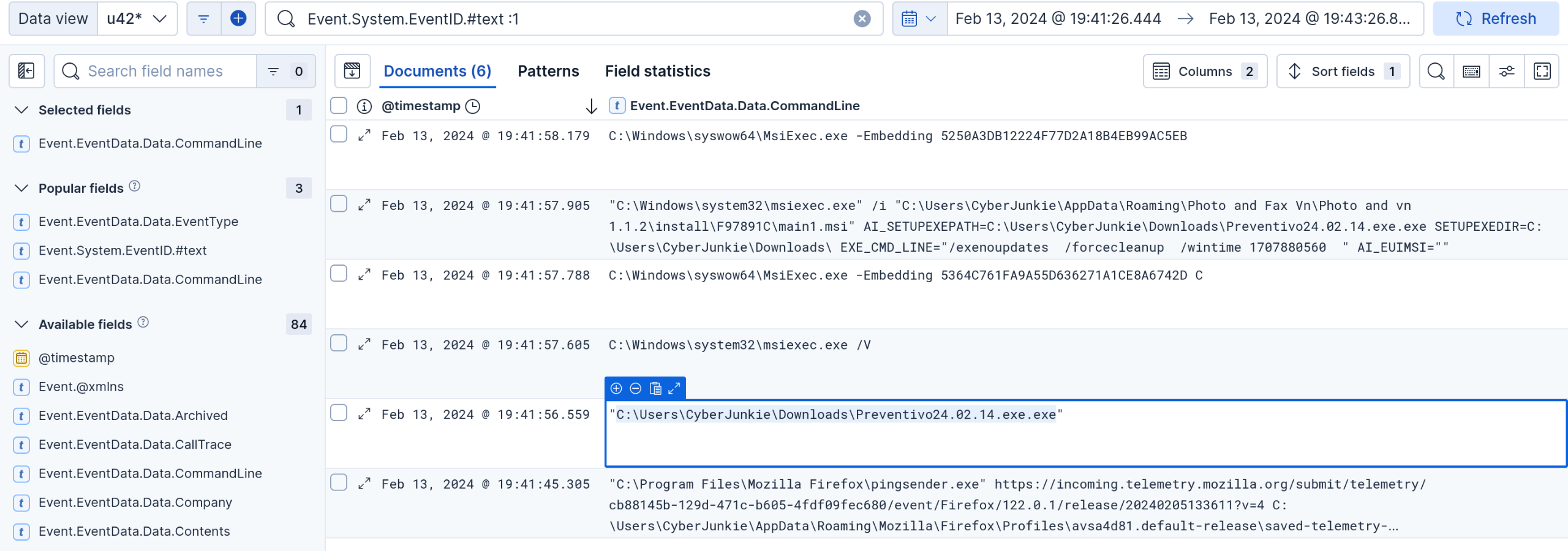 The thing that stands out is an unknown executable running from the Downloads folder (applocker, wya?)
3. Which Cloud drive was used to distribute the malware?
The thing that stands out is an unknown executable running from the Downloads folder (applocker, wya?)
3. Which Cloud drive was used to distribute the malware?
This was a fun one to find the answer to. I searched for all mentions of the suspicious executable.
"*Preventivo24.02.14.exe.exe"
Then, I included the data image and the target file name. Scrolling to the bottom of these events, it shows that firefox was used to download this file.
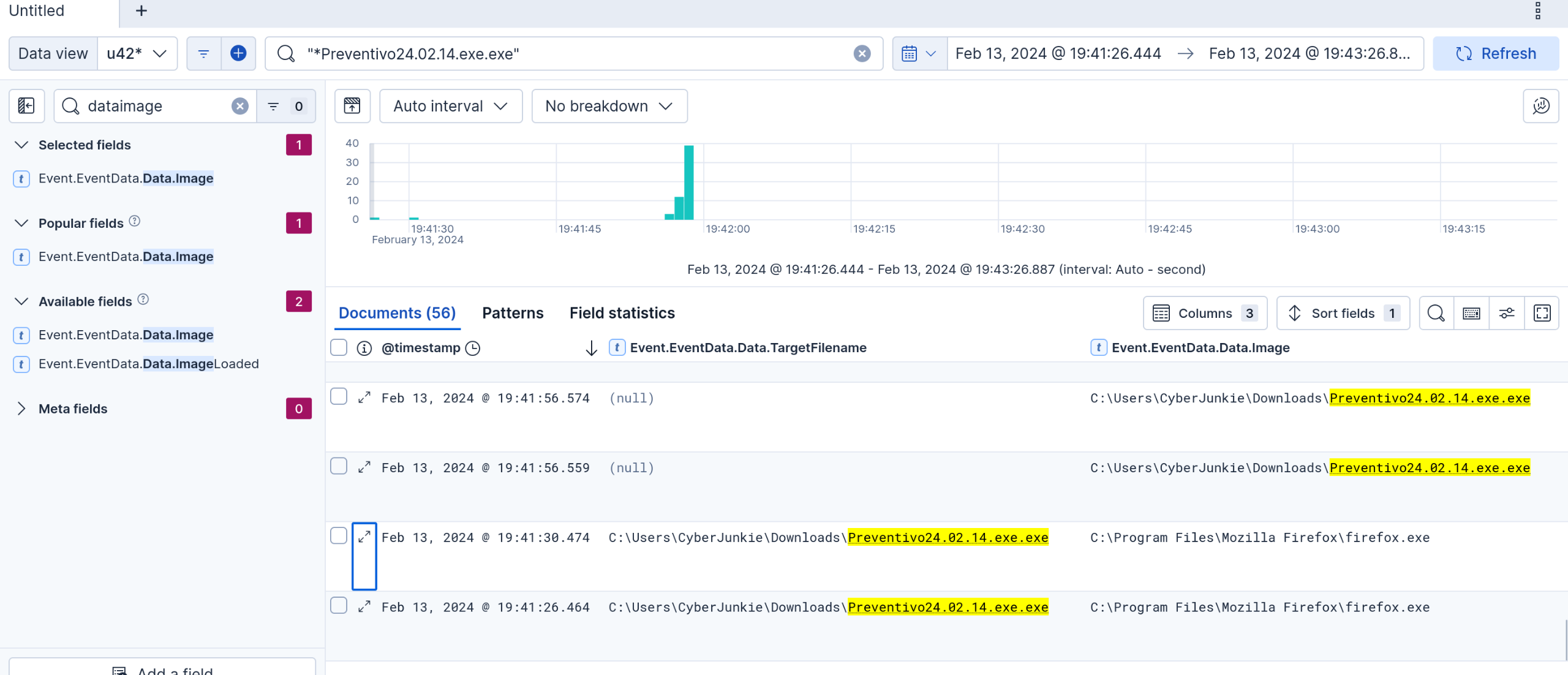
Now, normally, I would check firefox history. However, we can’t do that, so we have to try to correlate events.
Instead, I searched for all event id’s of 22, which are dns queries.
Event.System.EventID.#text :22
I left on the Data image, and enabled the dns.queryname field. This shows exactly what firefox did.
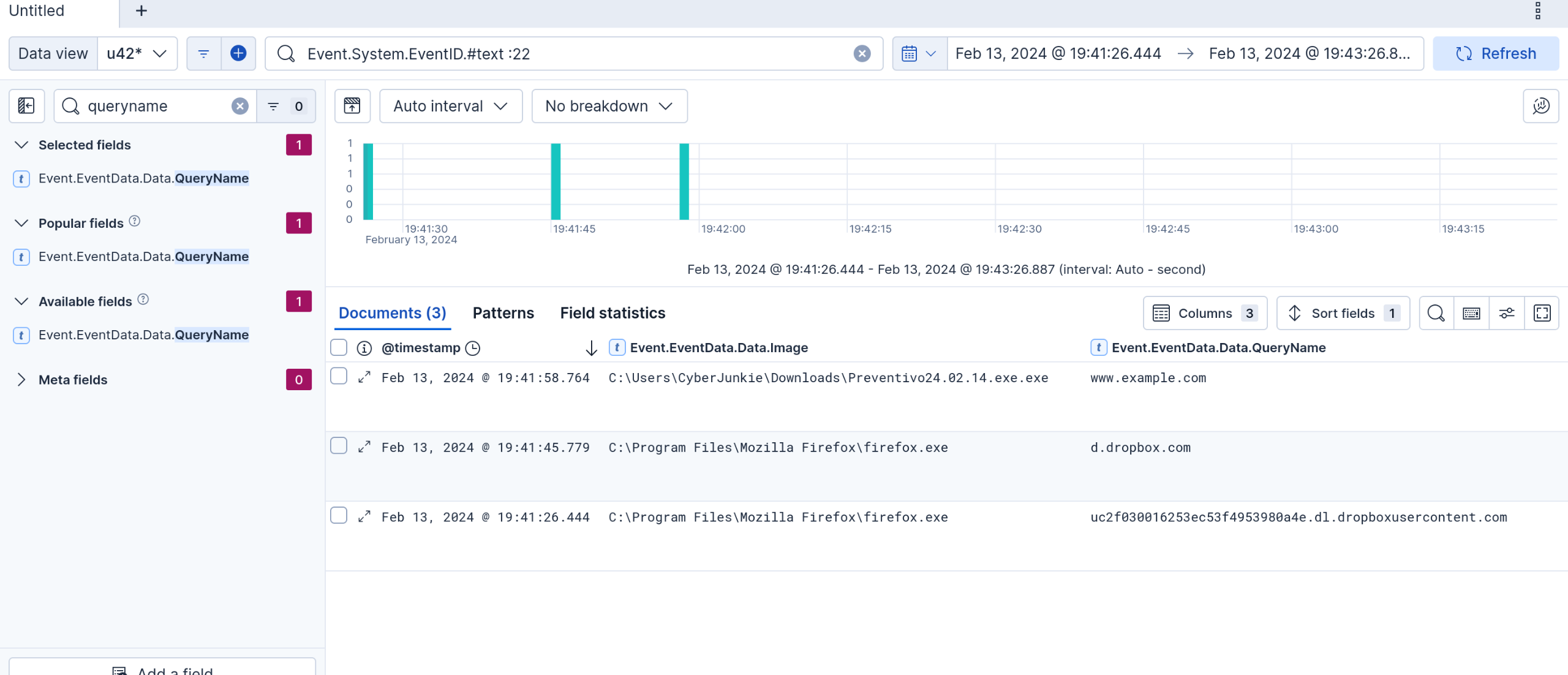 This shows that the answer is dropbox.
- For many of the files it wrote to disk, the initial malicious file used a defense evasion technique called Time Stomping, where the file creation date is changed to make it appear older and blend in with other files. What was the timestamp changed to for the PDF file?
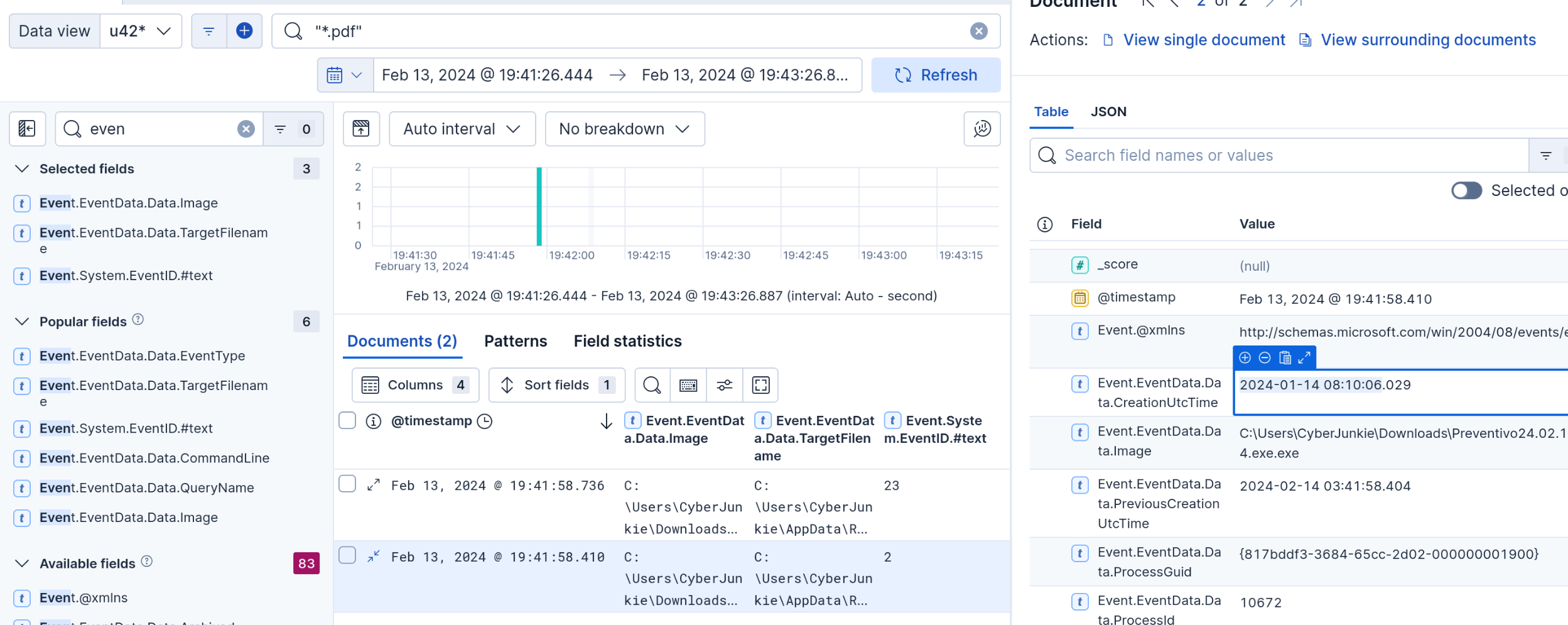
Search for all pdf files with:
"*.pdf"
Keeping Data.image on, and TargetFileName, displays that the executable changed a pdf in appdata. Further expansion of the event shows the date.
 5. The malicious file dropped a few files on disk. Where was “once.cmd” created on disk? Please answer with the full path along with the filename.
This can be solved easily by searching for once.cmd, that’s cheating though. Let’s find it by looking for file creation events from our suspicious process. Query:
Event.System.EventID.#text :11 and "*Preventivo24.02.14.exe.exe"
Scrolling down, we can see where once.cmd was created.
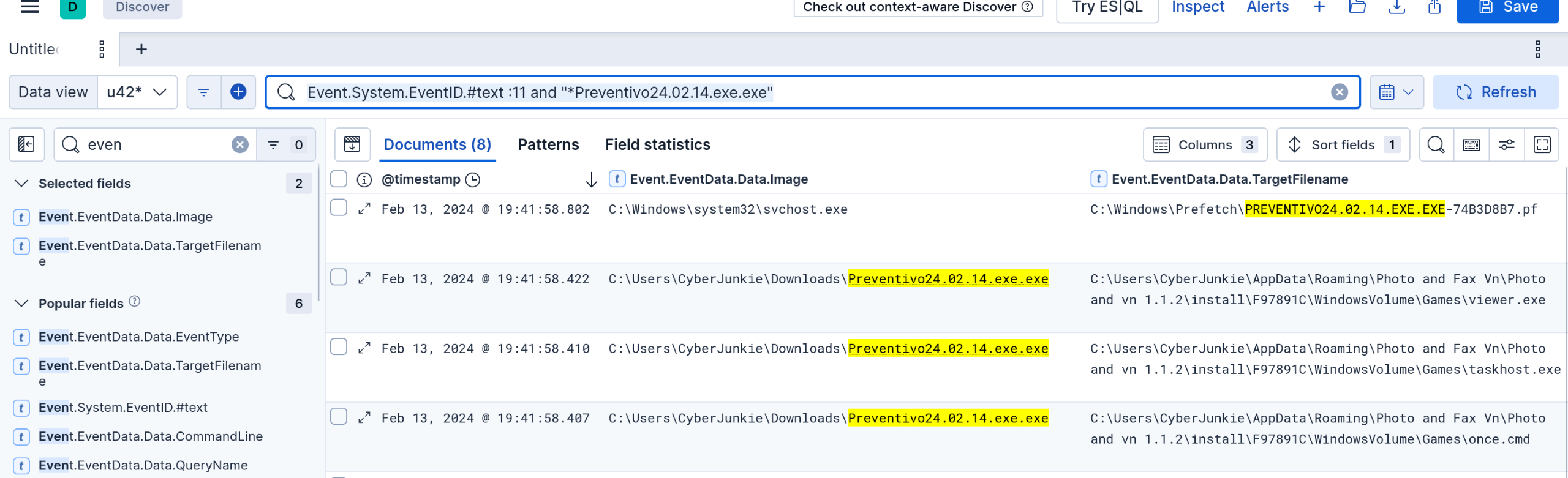
Task 6 was solved with out earlier dns query.
- Which IP address did the malicious process try to reach out to? Simply take the last query, and search for event id of 3, for network connections.
Event.System.EventID.#text :3 and "*Preventivo24.02.14.exe.exe"
- The malicious process terminated itself after infecting the PC with a backdoored variant of UltraVNC. When did the process terminate itself? You can again find this process with just the query:
"*Preventivo24.02.14.exe.exe"
I displayed the targetfilename and eventid# while displaying this query. This shows that the executable from the downloads folder modified some dll’s related to vnc. Then, it issued event id of 5 to terminate. The answer to this question is the time of termination.
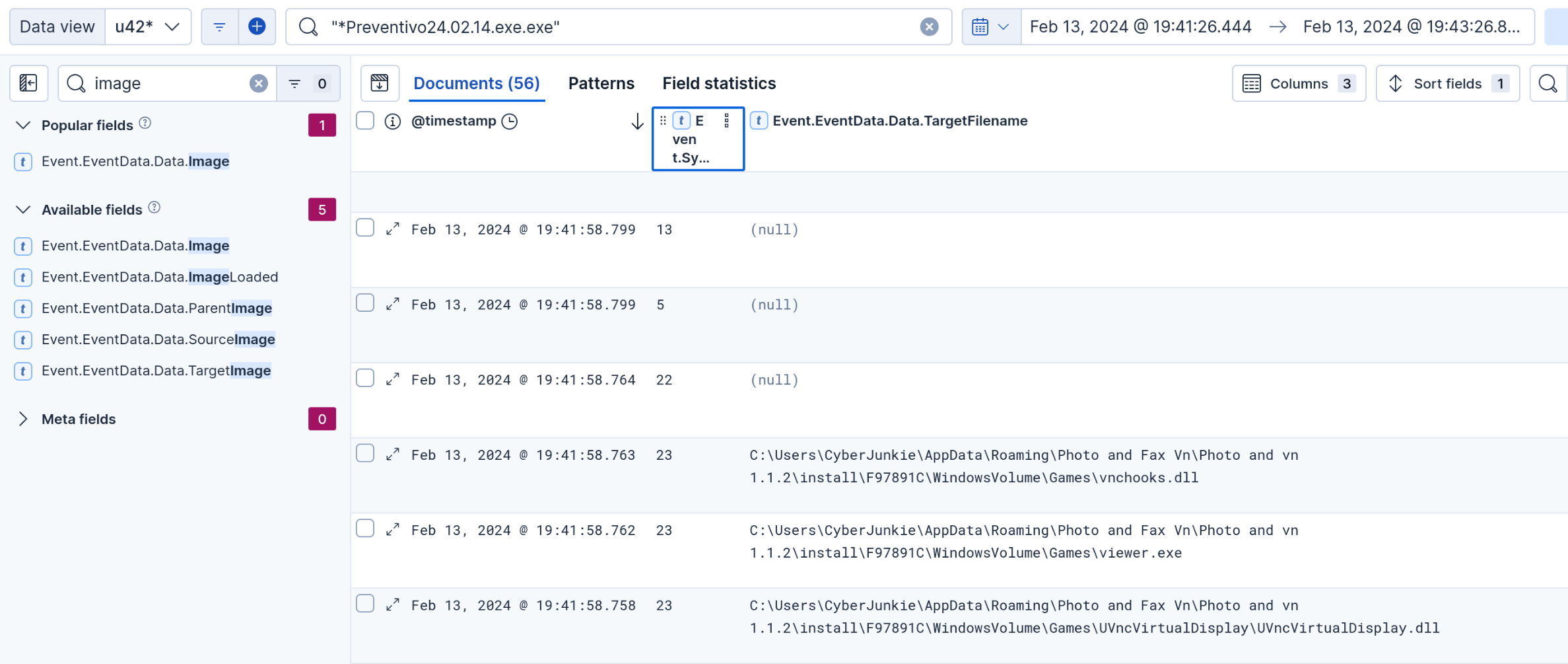
Later online searching of hashes under virustotal displays that these dll’s are suspicious.
Thank you for reading!